
Overview
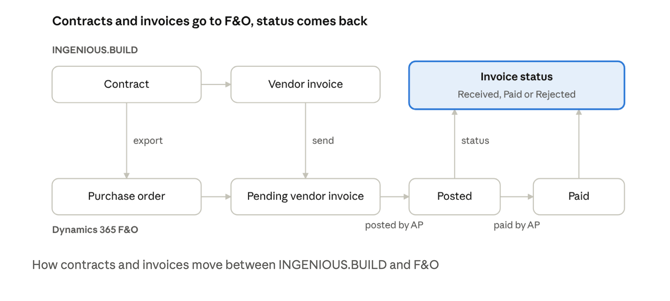
The integration keeps your Dynamics 365 Finance & Operations (F&O) ledger in step with the contracts and vendor invoices you manage in INGENIOUS.BUILD. Reference data is imported from F&O, contracts and vendor invoices are exported to F&O, and invoice status comes back.
- Imported from F&O: legal entities, vendors, projects and procurement categories, so every record you export points at something that already exists in F&O.
- Exported to F&O: each contract becomes a purchase order, and each vendor invoice on it becomes a pending vendor invoice matched to that purchase order.
- Status from F&O: whether Accounts Payable (AP) has posted the invoice, paid it, or deleted it.
F&O stays the system of record for the ledger. Your AP team reviews and posts the pending vendor invoices in F&O as usual.
The integration is in beta. INGENIOUS.BUILD switches it on for your workspace, so ask your Customer Success Manager before you start.
Before you start
You need an F&O administrator and a Microsoft Entra ID administrator. INGENIOUS.BUILD never creates vendors, projects or categories in F&O, so they must already exist there. We recommend connecting a sandbox (UAT) environment first and moving to production once a test contract and invoice have gone through.
- Register an application in Microsoft Entra ID in the tenant that owns your F&O environment, and create a client secret for it. INGENIOUS.BUILD signs in as this application, not as a person, so the registration needs no API permissions: F&O grants its access in the next step. Note the secret's expiry date: when it expires, syncing stops until you create a new secret and enter it in INGENIOUS.BUILD.
- Give the application access to F&O. In F&O, add it under System administration > Setup > Microsoft Entra ID applications and link it to an F&O user. That user needs access to every legal entity you invoice into, and security roles that let it:
- read legal entities, vendors, projects, procurement categories, units of measure, sales tax groups and item sales tax groups
- create purchase orders and vendor invoices
- read vendor invoices (pending and posted) and vendor transactions, to report status
- delete pending vendor invoices, which INGENIOUS.BUILD does when an invoice is reverted to draft
- Note your environment URL, for example
https://yourcompany.operations.dynamics.com. - Check your units. Every purchase order line uses one unit of measure.
LUMP(lump sum) is prefilled and suits most contracts, but it must exist in your F&O environment, like any unit you choose instead. Units are under Organization administration > Setup > Units > Units. - Assign project categories. Under Procurement and sourcing > Procurement categories > Edit category hierarchy > Assign project categories, assign a project category to each procurement category you will use.
- If your invoices carry tax, set up your sales tax groups and item sales tax groups in each legal entity you invoice into.
- Make sure vendors and projects exist in F&O. You will link INGENIOUS.BUILD companies and projects to them after connecting.
Connecting
A workspace administrator connects F&O in Settings > Integration Hub. Open the Microsoft Dynamics 365 Finance & Operations card and click Connect. Later changes go through the card's menu, Edit Configuration.
- Enter the connection details: Tenant ID, Client ID (Application ID), Client Secret and Environment URL from the steps above.
- Leave all four switches on: Enable Projects, Enable Cost Codes (Procurement Categories), Enable Accounting Entities (Companies) and Enable Vendors. Exporting contracts and invoices needs all four.
- Check the Default Purchase Unit. It is prefilled with
LUMP. You can type another unit that exists in F&O. - Click Save Configuration. INGENIOUS.BUILD tests the connection and checks that the unit exists. If it doesn't, the message lists the units your environment has. Vendors, projects, procurement categories and legal entities are then imported in the background, and refreshed every four hours after that.
- Map tax codes if your invoices carry tax. Reopen Edit Configuration: the lists of units and tax groups load once the connection works. Pair each INGENIOUS.BUILD tax code with one sales tax group and one item sales tax group, then save again. The client secret is never shown after saving, so re-enter it every time you save.
- Link your records:
- Map INGENIOUS.BUILD companies to F&O vendors, and cost codes to procurement categories.
- In each project, open Settings > Integrations > Edit. Pick the F&O project under External Project / Job and the F&O legal entity under External Accounting Entity / General Ledger, one row per project site. The project budget must be set up first.
A contract and its invoices post to the legal entity of the site on their first line. Project categories need no setup in INGENIOUS.BUILD: each purchase order line takes the project category that F&O assigns to its procurement category.
Exporting contracts and invoices
Nothing is exported automatically. Once your records are linked, open a contract and click Sync to … at the top of the page; the button shows your accounting system's name. Then sync each vendor invoice on that contract the same way.
What syncs
Four kinds of reference data are imported from F&O every four hours, contracts and vendor invoices are exported, and invoice status comes back. In this guide, "companies" are the vendors in your INGENIOUS.BUILD directory, and "legal entities" are what F&O calls companies.
| INGENIOUS.BUILD | F&O | Direction | What carries over |
|---|---|---|---|
| Accounting entities | Legal entities | F&O → INGENIOUS.BUILD | Name and company code |
| Companies (vendors) | Vendors | F&O → INGENIOUS.BUILD | Vendor account, name, address, tax ID |
| Projects | Projects | F&O → INGENIOUS.BUILD | Project ID and name |
| Cost codes | Procurement categories | F&O → INGENIOUS.BUILD | Category name and code |
| Contract | Purchase order | INGENIOUS.BUILD → F&O | Header: vendor, project, legal entity, currency. Per line: procurement category, quantity, unit price, line name, default purchase unit |
| Vendor invoice on a contract | Pending vendor invoice on the contract's purchase order | INGENIOUS.BUILD → F&O | Header: invoice number, invoice and due dates, description, currency, tax total. Per line: quantity and amount billed this period, retention, tax groups |
| Invoice status | Posted, paid or deleted vendor invoice | F&O → INGENIOUS.BUILD | Received by Accounting, Paid, Rejected by Accounting |
Not supported yet
- Change orders, and edits to a contract after it was exported. INGENIOUS.BUILD shows "Re-exporting is not possible." Invoice lines for work added after export can't be sent either, so agree how you will handle change orders before you go live.
- Non-Contracted Invoices, and client (Your) invoices.
- Invoice lines that only bill stored materials.
- Budgets and budget changes.
- Invoice attachments.
How invoices are sent
A vendor invoice reaches F&O as a pending vendor invoice on the contract's purchase order, and AP reviews and posts it in F&O. The contract has to be exported first. Once sent, the invoice shows Submitted to Accounting in INGENIOUS.BUILD.
Billing by work completed. Each invoice line bills the work completed this period against its purchase order line. A lump-sum line is ordered at quantity 1, so a line that is 50% complete this period is sent as quantity 0.5. The unit price is the line amount divided by that quantity.
Retention (retainage). Each line sends one net retention amount: the retention withheld on this invoice minus any retention released. F&O books it to the retention account set up in your F&O environment. A release can't be larger than the retention held on that line, and it has to be on a line that also bills new work. To release retention on its own, do it in F&O directly.
Tax. F&O calculates tax itself, from a sales tax group and an item sales tax group on each line. A line with tax is sent with the pair mapped to its tax code. The INGENIOUS.BUILD tax total goes on the invoice header as the expected amount, so AP can compare it with F&O's own calculation. Lines without tax need no mapping.
Status. INGENIOUS.BUILD checks F&O every four hours. To check payments sooner, use Sync Payment Status in the integration card's menu. A sent invoice moves through these statuses:
- Submitted to Accounting: sent, waiting in F&O for AP.
- Received by Accounting: AP has posted it in F&O.
- Paid: fully settled in F&O.
- Rejected by Accounting: the pending invoice was deleted in F&O. This doesn't mean AP declined it on review. You can revert the invoice to draft, correct it and send it again.
Reverting to draft. An invoice that is still Submitted to Accounting can be reverted only if your workspace allows reverting invoices after they reach accounting, and only by a user who can create and edit invoices. Reverting deletes the pending invoice from F&O, including any changes AP made to it, so tell AP first. When you send the invoice again, it goes to F&O as a new pending invoice. Once AP has posted it, the invoice can no longer be reverted to draft.
When a sync is refused
INGENIOUS.BUILD checks most problems before it sends anything, and the message names the line at fault. F&O can still refuse a record; when it does, the message passes on F&O's reason and nothing is left half-created.
| Problem | When | Why | What to do |
|---|---|---|---|
| Purchase unit does not exist | Saving the configuration | The Default Purchase Unit is not a unit in your F&O environment | Pick one of the units listed in the message, or add the unit in F&O |
| Tax code mapping incomplete or duplicated | Saving the configuration | Each row needs a tax code and both groups, and a tax code can be mapped only once | Complete or remove the row |
| Procurement category has no project category | Contract export | F&O can't cost the purchase order line to the project | Assign a project category to that procurement category in F&O, then sync again |
| Re-exporting is not possible | Contract export | The contract was already exported and has changed since | Update the purchase order in F&O directly |
| Contract has not been exported | Invoice export | The invoice needs the contract's purchase order in F&O | Export the contract first, then sync the invoice |
| Invoices without a contract are not supported | Invoice export | Only invoices on an exported contract can be sent | Put the invoice on a contract |
| Line bills an amount but no units of work | Invoice export | The line's only charge this period is stored materials, or its quantity can't be worked out from the contract | Bill work on that line, or leave stored materials off this invoice |
| Completed work goes down while the amount stays positive | Invoice export | F&O would receive a negative quantity at a positive amount | Correct the line's completed work or amount |
| Line only releases retention | Invoice export | F&O doesn't accept a line without units of work | Remove the release from this invoice and release the retention in F&O |
| Release is more than the retention held | Invoice export | F&O would show a negative retention balance | Lower the release to the amount held |
| Retention is more than what is left to bill | Refused by F&O | F&O doesn't allow retention above the purchase order line's remaining balance | Check the retention and the remaining contract balance in F&O |
| Line has tax but no tax code | Invoice export | F&O needs a tax code's groups to calculate tax | Add a tax code to the line or remove the tax |
| Tax code is not mapped | Invoice export | Its sales tax group and item sales tax group are unknown | Map the tax code in Edit Configuration |
| Tax codes on a line map to different groups | Invoice export | An F&O line takes one pair of tax groups | Map them to the same pair, or keep one tax code on the line |
| Tax groups missing in the company | Invoice export | The mapped pair doesn't exist in the legal entity the invoice posts to | Map the tax code to groups that exist in that legal entity |
| Bill already posted, paid or credited | Reverting to draft | AP has posted the invoice in F&O | Correct it in F&O instead |
Questions, or a refused sync you can't resolve? Contact your INGENIOUS.BUILD Support team.